Installation Steps
Internet information Server is an application for hosting web sites on Windows PC's.
To turn this on feature, please follow the steps below.
Step 1
In the Search bar type in IIS. if the application is already installed you will see this screen, if its already installed go to Step 2.

If IIS is not installed:
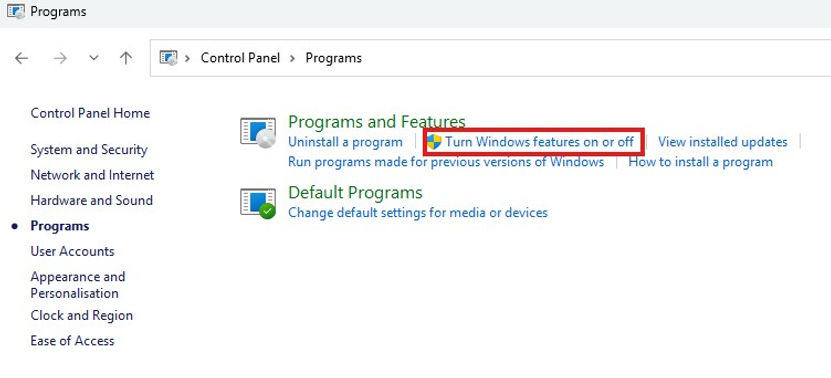
1. Open the Control Panel by searching for it in the Start menu.
2. Click on “Programs”.

Select “Turn Windows features on or off.”
In the Windows Features, locate “Internet Information Services” and expand its tree

Ensure the check boxes above are ticked, once done re-start the PC.
To check that IIS is running, type IIS in the Search bar, you should see the image at the start of Step 1.
Click on the Internet Information Services Manager, you will see the following screen.
Click on the node in the red box, it should expand out and display a site called "Default Web Site"

Open a browser and type the following into it:
localhost or 127.0.0.1
The following will be displayed.

Step 2
The next step is to install the .Net runtimes, this is the framework which runs the Play Cricket Scoreboard viewer.
Download the runtime from the official .NET website. The link is https://dotnet.microsoft.com/en-us/download/dotnet/thank-you/runtime-aspnetcore-8.0.21-windows-hosting-bundle-installer
Once the executable has downloaded, open up the downloads folder and run the program.

Step 3
Re-Start your PC.
The next item to download is the URL Re-Write Module 2.1
Once the executable has downloaded, open up the downloads folder and run the program.
Step 4
On your PC, create a folder called c:\sites\PC_Scoreboard_Viewer
Download the Scoreboard Viewer from here and extract the files into the folder above

Step 5
To configure the website, we first need to know the IP address of the PC. In the search bar, type in cmd and click on the icon called Command Prompt.

Type in ipconfig, you are after the value next to the IPV4 Address e.g 192.168.0.x

Now open IIS and and under sites, we can create a new site called PC_Scoreboard_Viewer
Right click on sites and press the Add New Site option

Type in the options below using your IP Address and any Port Number (I used 8025)

Step 6
Copy the following file (nvplay-scoreboard1.txt) from the website folder to the following folder:
C:\Users\[your user]\AppData\Local\NV_Play\ECB\_Scoreboards\Output\nvplay-scoreboard1.txt
Open Play Cricket and start a match (use Demo, it always good to beat Australia).
Click on Tools and then Configuration
Click on Scoreboard and enter/ensure the details below match.
If you perform an action, the contents of nvplay-scoreboard1.txt will change.

Step 7 (almost there)
In the folder C:\Users\[your user]\AppData\Local\NV_Play\ECB\_Scoreboards\Output\nvplay-scoreboard1.txt
Right click on the file called nvplay-scoreboard1.txt and click properties
On the Security Tab, add the following users by clicking on the Edit button and then Add

Press Advanced and then on the other screen Find Now.
You need to add:
ASP.NET Machine Account
IIS IUSRS

Step 8
Add a firewall rule to allow access on the local network to the site
In the search bar type in Firewall, then click on Windows Defender Firewall

Click on Advanced Settings

Click on Inbound Rules and then New Rule

Click on Port

Then specify the port e.g. 8025 (the one we used in the IIS bindings)

Then Allow the connection


Leave all the rules in place but once it is up and running, maybe turn off Public.

Name the rule e.g. PC_Scoreboard_Viewer
Step 9 (Done)
Open a web browser and type in your IP address followed by your Port Number e.g. 192.168.0.7:8025
The web page should appear. If not, look in the webfolder in the Log file, it will list out the issue.